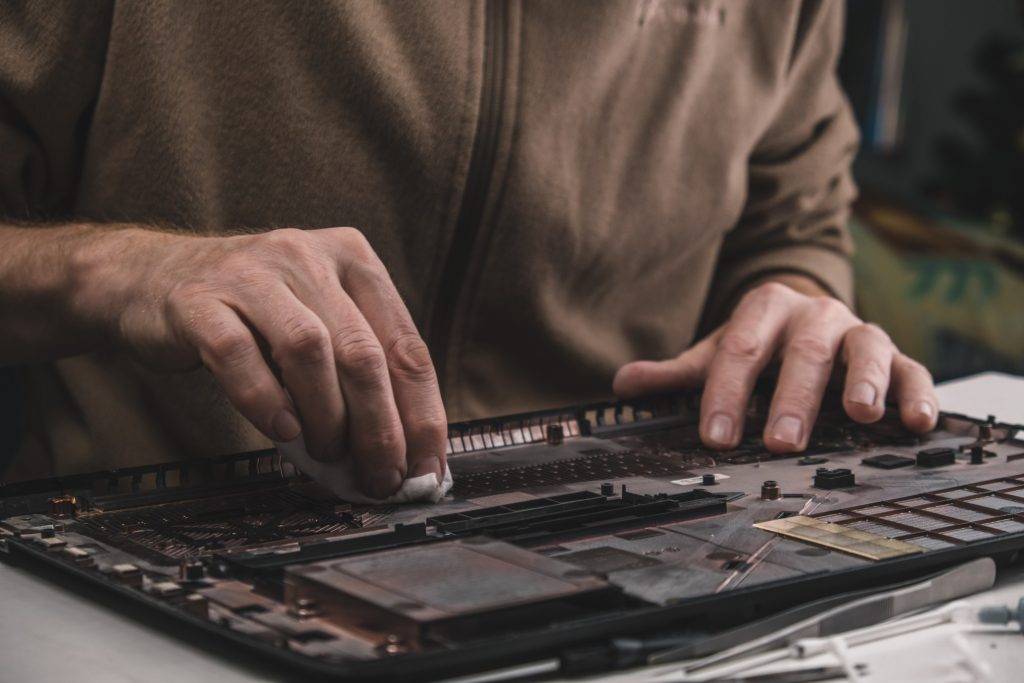
There's nothing wrong with attempting to fix your own computer. For many issues — reinstalling software, clearing storage, removing malware — a capable and careful user can handle the job without any specialist tools or training. The internet is full of tutorials, and for straightforward tasks, following them carefully is a reasonable approach.
However, we regularly see customers who have come to us after a DIY repair attempt has made their problem significantly worse. In some cases, what began as a relatively simple fix has resulted in permanent damage to components, irretrievable data loss, or a machine that now won't power on at all. This article covers the most common mistakes we see — not to discourage you from attempting repairs, but to help you approach them more safely when you do.
1. Skipping the Backup Before You Begin
This is far and away the most consequential mistake on this list. Before attempting any repair, software reinstallation, hardware change, or even a major operating system update, you should ensure that all important data is backed up to a separate location — an external drive, cloud storage, or both.
We see customers who lose years of photos, documents, and files because they began a repair procedure without backing up first. Even routine operations can go wrong: a Windows reinstallation that doesn't complete cleanly, a partition that gets accidentally formatted, or a hard drive that finally fails at the worst possible moment. The brief time it takes to back up your data is the single most important precaution you can take.
2. Working Without Earthing Yourself Against Static
Static electricity is invisible, silent, and capable of instantly and permanently destroying electronic components. The static charge you build up simply by walking across a carpet or sitting on a fabric chair can be thousands of volts — far more than necessary to fry a RAM module, GPU, or motherboard.
Whenever you're working inside a computer — fitting RAM, replacing a storage drive, cleaning components — you should discharge static before touching anything. The simplest way is to wear an anti-static wrist strap, which costs a few pounds and is available from any electronics supplier. If you don't have one, touch the bare metal of the computer's case (while it's unplugged from the mains) to ground yourself before handling components, and avoid working on carpeted floors or wearing synthetic clothing.
We've repaired machines where perfectly healthy components were destroyed during what was intended to be a routine cleaning or upgrade because proper anti-static precautions weren't taken. It's a mistake that's entirely avoidable with minimal preparation.
3. Forcing Connectors or Components
Computer components are designed to fit in specific orientations, and the connectors are designed to mate in a single, correct way. If something isn't going in smoothly, the answer is almost never to apply more force. Pushing harder is one of the fastest ways to bend pins, crack sockets, break retaining clips, or tear ribbon cables — all of which can turn a straightforward repair into an expensive one.
RAM modules, for example, have a notch that aligns with a corresponding key in the slot. If the notch doesn't line up, the module is the wrong type or is being inserted backwards. SATA cables, PCIe cards, and laptop screen connectors all have similar alignment features. When something resists, stop, check your orientation, consult the manual or a reliable guide, and try again carefully.
4. Using the Wrong Tools
Modern laptops in particular use a wide variety of non-standard screws — Torx, JIS (Japanese Industry Standard), tri-wing, pentalobe — as well as plastic clips, adhesive pads, and fragile ribbon cable connectors. Using the wrong screwdriver — particularly a Phillips head on a JIS screw — is almost guaranteed to strip the head, making the screw very difficult or impossible to remove without specialist tools.
Before opening any device, identify the screw types involved and ensure you have the correct bits. A decent electronics screwdriver set with a good range of bits costs around £10–£20 and is a worthwhile investment if you plan to do any regular maintenance. Plastic opening tools (pry spudgers) are essential for opening modern laptops without cracking the plastic chassis — a metal pry tool or flathead screwdriver is far too likely to cause cosmetic damage or break clips.
5. Not Keeping Track of Screws and Components
Modern laptops can contain 20 or more screws of several different lengths. Using the wrong length screw in the wrong location — particularly using a longer screw where a shorter one belongs — can cause it to penetrate a component on the other side of the board, causing serious damage. Short screws used in locations that require longer ones may not fasten properly, leaving components loose.
Before disassembling any device, lay out a piece of paper or use an ice cube tray to keep screws organised by location. Photograph each stage of disassembly before removing any part — this gives you a reference for reassembly. Many experienced technicians use a printed diagram of the device's base with screws taped or labelled in their corresponding positions.
6. Ignoring Warning Signs During a Drive Failure
If your hard drive is making clicking, grinding, or repetitive beeping sounds, this is a serious warning sign of mechanical failure. The single most dangerous thing you can do in this situation is to continue using the drive. Every additional read/write cycle on a mechanically failing drive risks further damage to the platters — potentially making data recovery more difficult or impossible.
Attempting to run diagnostic tools, clone the drive, or continue normal operation on a clicking hard drive can result in permanent data loss that no recovery service can reverse. The correct action is to power down the machine immediately, avoid connecting the drive unnecessarily, and bring it to a professional data recovery service as soon as possible. Speed matters.
7. Applying Too Much (or Too Little) Thermal Paste
Thermal paste is the heat-conducting compound applied between the CPU (and sometimes GPU) and the heatsink that sits on top of it. It fills microscopic gaps in the surfaces, allowing heat to transfer efficiently. When replacing thermal paste — either during a repair or as a maintenance task — the quantity applied matters significantly.
Too little paste and air gaps remain, reducing thermal transfer. Too much paste and it can spread beyond the CPU die, potentially making contact with surrounding components on the motherboard — which can cause short circuits or other problems. The correct amount for most desktop CPUs is roughly the size of a small pea, applied to the centre of the CPU die. For most laptop CPUs, slightly less is appropriate. The pressure of the heatsink being mounted will spread it evenly across the surface.
8. Reassembling Before Testing
After completing a repair, there's a temptation to reassemble everything fully before testing. This is understandable, but it's worth doing a partial power-on test with the case open (or with the laptop's base removed if it's accessible) to confirm the repair has worked before buttoning everything up. If something is wrong — a connection missed, a component not seated properly — you want to discover that before you've fully reassembled the device.
For desktop PCs, this is straightforward: power on with the side panel off and verify that the repair works as expected. For laptops, test with the base cover off if possible. If you hear the fan spin, the machine posts correctly, and the operating system loads, you can proceed with full reassembly with confidence.
When DIY Isn't the Right Choice
Some repairs are genuinely suitable for careful, informed DIY attempts. Replacing RAM in a desktop PC, installing an SSD in a machine with accessible storage bays, or cleaning dust from vents using compressed air are all reasonable tasks for a competent user with the right tools and proper precautions.
Others, however, are best left to professionals. Motherboard-level repairs, BGA component replacement, micro-soldering work, screen replacements on tightly integrated laptops, and any work on a machine where data recovery is the primary concern all require specialist skills, tools, and experience. Attempting these without proper preparation often results in greater damage and greater cost.
If you're ever unsure whether a repair is within your capabilities, the safest and most cost-effective option is to get a professional assessment first. A brief, honest conversation with a technician can save you from a much more expensive mistake.
Not sure if your repair is something you should tackle yourself? Ask us first — it's free.
Book a Free Assessment Our Services